

You just had a great trading month. You tell your friends, or perhaps a potential investor, that you made 10% profit. Their first question isn’t “How?” It’s “Show me.”
Screenshots of a MetaTrader terminal prove nothing. They are easily faked and universally distrusted in the professional trading world. If you want to attract serious capital or simply audit your own performance honestly, you need a third-party audit.
Connecting your account to Myfxbook is the industry standard for verification. It separates the hobbyists from the professionals.
In this guide, I will walk you through the exact process of connecting your MT4 or MT5 account to Myfxbook, securing those coveted “Green Verification Badges,” and ensuring your data is safe.
Why You Must Connect: Transparency in the Forex Wild West
In an industry plagued by “screenshot millionaires,” verified data is your most valuable asset.
Myfxbook acts as an automated auditor. It connects directly to your broker’s server, pulls your trading history, and calculates metrics that are impossible to fake—like Drawdown, Absolute Gain, and Sharpe Ratio.
At SarowarJahan.com, my entire reputation as a fund manager and signal provider is built on this transparency. I don’t just tell clients I can trade; I send them a link to my verified Myfxbook profile.
If you are serious about trading, you need this level of accountability.
The Prerequisites: Safety First
Before we start clicking buttons, we need to address the number one fear traders have: Safety.
“If I give Myfxbook my password, can they steal my money?”
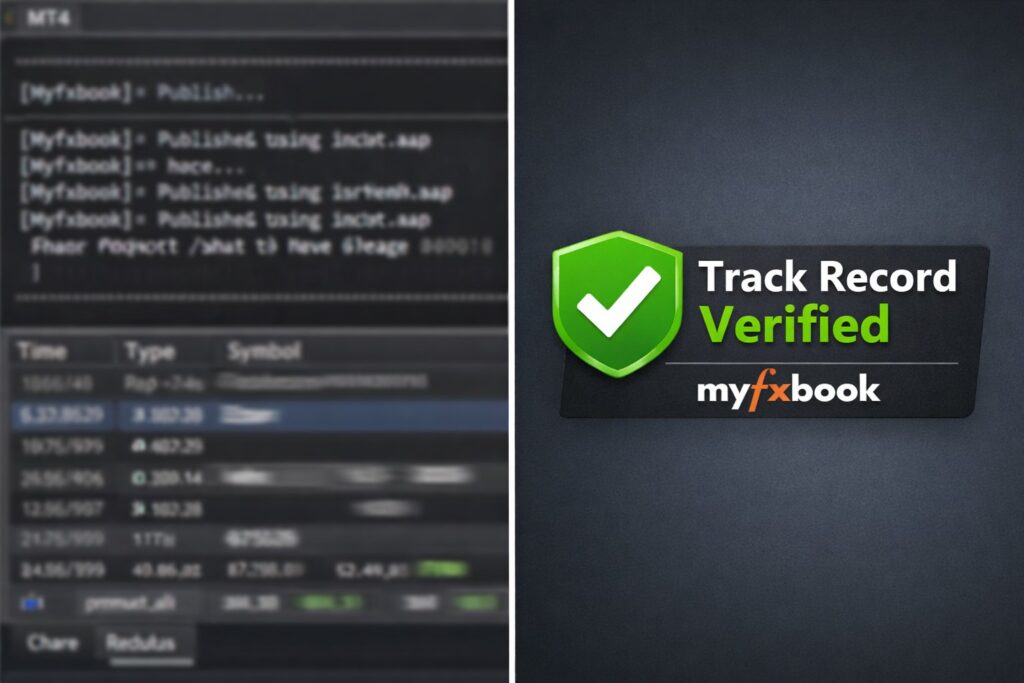
The answer is no, provided you use the Investor Password.
Every trading account has two passwords:
- Master Password: Allows full trading and withdrawal access. Never share this.
- Investor Password (Read-Only): Allows viewing rights only.
Myfxbook only requires the Investor Password. This grants their servers “Read-Only” access to verify your history. They cannot open trades, close positions, or withdraw funds.
Checklist before proceeding:
- [ ] Your MT4/MT5 Login Number.
- [ ] Your Investor Password (Create one in MT4 under Tools > Options > Server > Change).
- [ ] Your exact Broker Server Name (e.g.,
ICMarkets-SC-Liveis different fromICMarkets-Live).
Method 1: The “Auto Update” Method (Recommended)
This is the cleanest, easiest way to connect. It works for both MetaTrader 4 and MetaTrader 5 and requires no software installation.
Follow these exact steps:
- Log in to your Myfxbook account.
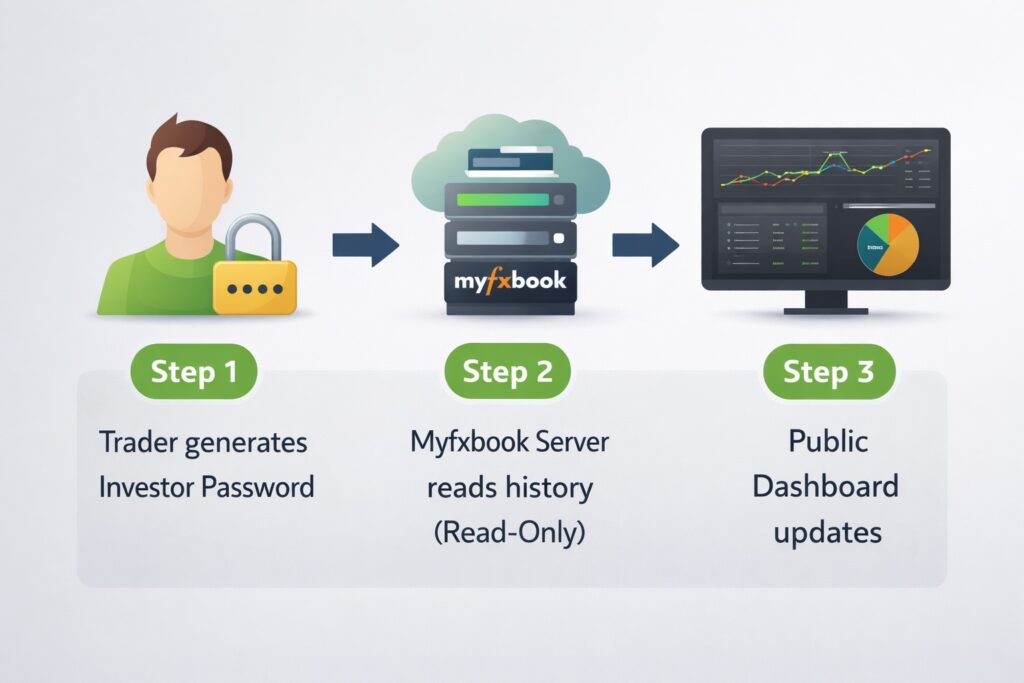
- Navigate to the menu bar and select Portfolio > Add Account.
- Click the “Add Account” button at the bottom of the list.
- From the platform dropdown, select MetaTrader 4 (Auto Update) or MetaTrader 5 (Auto Update).
- Enter your credentials:
- Account Name: Give it a public nickname (e.g., “Sarowar Growth Strategy”).
- Broker: Search for your broker.
- Server: Select the exact server name displayed in your terminal login box.
- Login: Your account number.
- Password: Your Investor (Read-Only) password.
- Click “Create Account.”
The system will take anywhere from 30 seconds to 2 minutes to connect. Once finished, you will see a “Connection Successful” message.
The “Double Verification” System: Getting the Green Badges
Connecting is only step one. Now you need to Verify the account.
If you look at professional profiles on https://SarowarJahan.com, you will see two distinct green checkmarks. These are mandatory for anyone offering signal services.
Badge 1: Track Record Verified
This confirms that the data on Myfxbook matches the data on your broker’s server. It proves you haven’t manually edited the history CSV file.
- How to get it: Usually automatic with the “Auto Update” method. If not, simply ensure your Investor Password is correct.
Badge 2: Trading Privileges Verified
This is harder to get. It proves that you are the actual owner of the account, not just someone who found a random investor password online.
How to verify privileges:
- Go to Portfolio > Add Account and find your new account.
- Click “Edit”.
- Find the field labeled “Authorization Password”. This will be a random string of text (e.g.,
gd54dfg). - Copy this password.
- Open your MT4/MT5 terminal.
- Change your Investor Password to this specific Authorization Password.
- Go back to Myfxbook and click “Connect” or “Update Password”.
- Once the system sees the password match, you are verified.
- Important: You can change your Investor Password back to normal after this step.
Verification Comparison Table
| Feature | Track Record Verified | Trading Privileges Verified |
| What it proves | Data accuracy (No fake history) | Account Ownership (It’s actually yours) |
| Required for | Basic analysis | Public Signal Providers & Fund Managers |
| Difficulty | Low (Automatic) | Medium (Requires password change) |
| Trust Level | Standard | High (Professional Standard) |
Troubleshooting Common Connection Errors
Even pros run into issues. Here are the most common fixes if your connection fails.
- “Timeout” or “Connection Failed”: This usually means you selected the wrong server. Check your MT4 login box again.
Live01is not the same asLive02. - History Not Updating: Myfxbook does not update instantly. It updates every 60 minutes or so. Do not panic if your latest trade isn’t there yet.
- 0% Gain / Wrong Data: Ensure your specific trading history period in MT4 is set to “All History” before connecting, although the Auto Update method usually bypasses this.
- Broker Blocks IP: Some niche brokers block Myfxbook’s IP addresses. If this happens, you may need to use the “Publisher EA” method, which involves installing a small file in your
MQL4/Expertsfolder.
Frequently Asked Questions (FAQ)
Here are the answers to the specific questions fellow traders ask me most often.
Q: How do I verify “Trading Privileges” on Myfxbook?
To verify Trading Privileges, change your Investor Password to match Myfxbook’s Authorization Password.
Go to your account settings on Myfxbook to get the unique “Authorization Password.” Update your MT4/MT5 Investor Password to match this string. Then, click “Update” on Myfxbook to confirm you control the account.
Q: Why is my Myfxbook account not updating?
Updates often fail due to a changed password or server timeout.
If you recently changed your trading password, you must update it in the Myfxbook settings panel. Additionally, verify that your broker has not migrated your account to a new server.
Q: Is it safe to give Myfxbook my investor password?
Yes, because the Investor Password only grants Read-Only access.
Myfxbook cannot execute trades or withdraw funds with this password. It simply “reads” the history to populate your graphs. Never share your Master Password with any third-party service.
Q: Can I connect MetaTrader 5 (MT5) to Myfxbook?
Yes, Myfxbook fully supports MT5 via the Auto-Update method.
While older versions of the site struggled with MT5, the current “Auto Update” feature works seamlessly. Ensure you select “MetaTrader 5 (Auto Update)” from the platform list.
Q: What is the difference between “Track Record Verified” and “Trading Privileges Verified”?
Track Record confirms accurate data; Trading Privileges confirms account ownership.
“Track Record Verified” means the numbers are real. “Trading Privileges Verified” means you personally own the account. To be taken seriously as a fund manager, you need both.
Ready to Scale Your Trading?
Connecting your account is the first step toward professional trading. Once you have a verified track record, you can analyze your performance objectively and build trust with investors.
If you are looking for a reliable fund manager who already has these verified credentials, feel free to explore my portfolios here at SarowarJahan.com. I believe in complete transparency—my results speak for themselves.
Connect on Telegram Don’t miss out on critical market updates. Join my Telegram community for the latest news and trading signals delivered straight to your phone: https://t.me/mql5signals_Sarowar